Force Feedback Settings Explained: Getting Your Wheel to Feel Right
What force feedback tells you, how gain, clipping, damping and kerb effects work, and how GT7, Forza Motorsport and F1 25 menus differ.
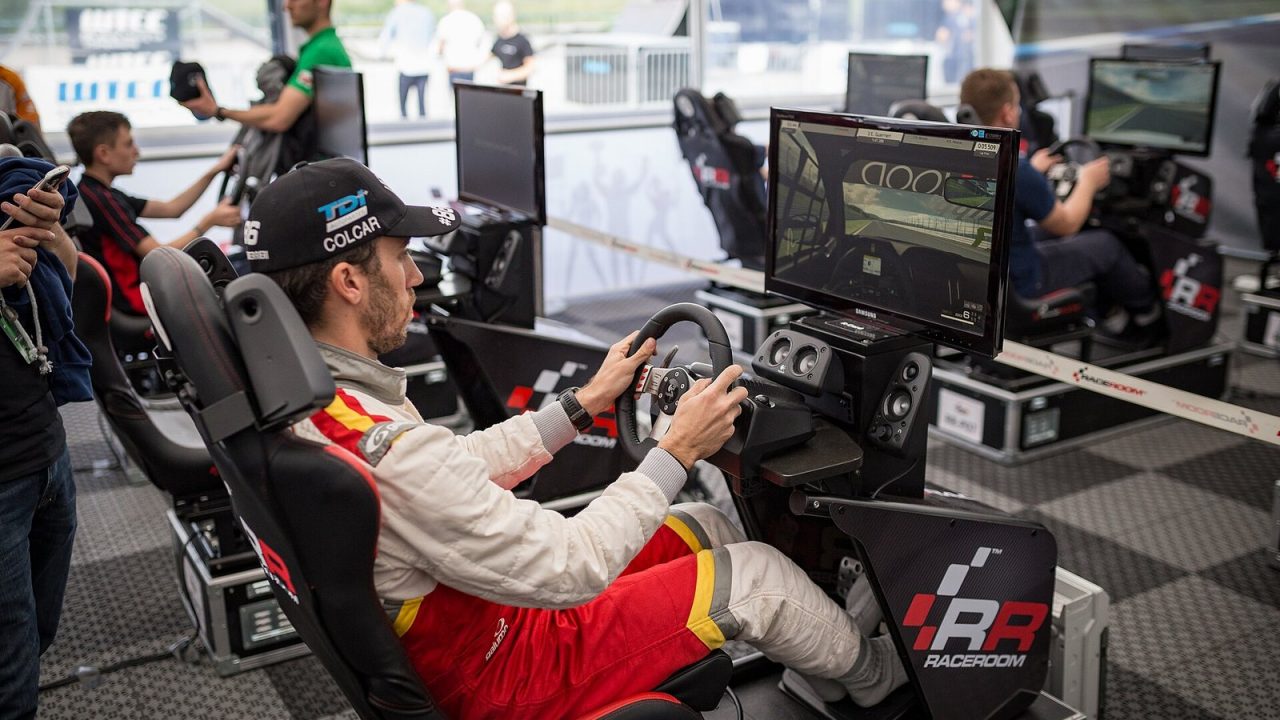
Plugging a wheel into a racing game is only half the job. Out of the box, many setups feel either limp and vague or heavy and numb, and the difference between the two is usually a handful of sliders buried in the options menu. This guide explains what force feedback (FFB) is trying to tell you, what the common settings actually do, and how the menus differ between Gran Turismo 7, Forza Motorsport and the official F1 games. It is about in-game tuning, not about which wheel to buy: the principles apply whatever hardware you already own.
What Force Feedback Is Supposed to Communicate
In a real car, the steering wheel is a sensor. The forces coming up the steering column tell the driver how much grip the front tires have, when they are starting to slide, when the rear is stepping out and what the road surface is doing. Force feedback in a racing game tries to recreate that information using a motor in the wheel base.
Good FFB is not about strength. It is about information. The most useful things a wheel can tell you are:
- Front grip level. As the front tires approach their limit, steering weight typically builds and then lightens. That lightening is the cue that you are about to understeer.
- Rear grip and rotation. When the rear slides, the wheel tends to rotate toward the direction of the slide, prompting you to counter-steer.
- Weight transfer. Braking loads the front tires, so steering often feels heavier on corner entry and lighter on throttle at exit.
- Surface detail. Bumps, kerbs, grass and gravel all add texture so you know where the car is without looking.
Everything in an FFB menu is ultimately a way of balancing those signals. A setting that makes the wheel feel “exciting” but hides the moment of front grip loss is making you slower, not faster.
The Core Settings and What They Do
Every game names things differently, but most FFB menus are built from the same building blocks.
Overall strength (gain)
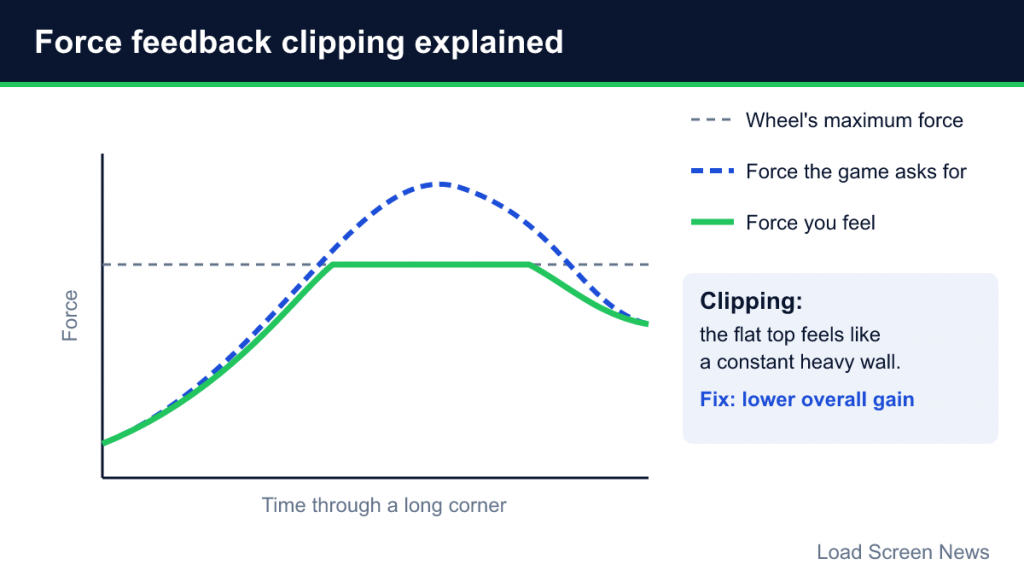
This is the master volume. It scales every force the game sends to the wheel. It is tempting to max it out, but stronger is not automatically better. If the game asks for more force than your wheel base can produce, the signal flattens out at the top, a problem known as clipping.
Clipping
Clipping happens when the requested force exceeds the maximum the motor can deliver. Imagine a long, fast corner: the game wants to increase the force as grip builds and then reduce it slightly as the tires start to slide. If you are already at 100% of the motor’s output, both of those states feel identical, a constant heavy wall. You lose exactly the information you need. The usual fix is to lower overall strength until you can feel the force rise and fall again.
Damping
A damper adds resistance proportional to how fast you turn the wheel. A small amount makes the wheel feel weighted and stops it from oscillating on straights, especially when stationary or at low speed. Too much makes the wheel feel like it is moving through syrup and slows your reactions to slides.
Road, kerb and surface effects
These are added effects that layer texture on top of the core forces from the tires. They can be informative, but they are also the most common source of noise. Strong kerb or surface effects can make a wheel rattle in a way that masks grip changes. Many experienced players keep them modest.
Minimum force
Some wheels, especially gear and belt designs, have a small “dead” zone where very light forces are not felt because of internal friction. A minimum force setting, found either in a game or in the wheel’s own software, boosts those small forces so they become noticeable near the center. Set too high, it can make the wheel feel notchy or twitchy on straights.
Self-centering spring
A centering spring is an artificial force that pulls the wheel back to the middle. Most simulation-minded players turn it off or keep it very low, because the tire model should generate realistic self-aligning forces on its own. A strong artificial spring can mask what the tires are doing.
Wheel Rotation and Steering Lock
Wheel rotation is how far the physical wheel turns from lock to lock. Steering lock is how far the car’s front wheels turn. When these are matched so that turning your wheel 90 degrees turns the virtual steering wheel 90 degrees, the game is said to have a 1:1 or “soft lock” setup, and it tends to feel the most natural.
Some games handle this automatically, adjusting the in-game steering ratio to each car. Others expose a separate setting. A formula car usually has a small steering range compared with a road car, so a lower rotation setting is typical for open-wheelers. If the virtual wheel on screen and your real wheel do not move together, that is the first thing to fix, because mismatched ratios make it very hard to judge how much steering you have applied.
Gran Turismo 7
Gran Turismo 7 keeps its FFB menu relatively simple, which is part of why it is a common starting point for console wheel users. The two settings that matter most are:
- Max. Torque, which adjusts the maximum strength of the feedback. The in-game manual explains that higher values make the response from the tires feel duller when cornering hard, while lower values make the car feel more responsive.
- Force Feedback Sensitivity, which adjusts the steering resistance at the moment you start to turn. Higher values make the wheel more reactive to changes, lower values make straight-line steering gentler.
Read that Max. Torque description carefully: it is essentially a clipping warning. Turning torque up makes the car feel heavier but can wash out detail during hard cornering. A sensible approach is to start in the middle of the range, drive a familiar circuit and lower Max. Torque if long corners feel like one constant weight. Because GT7 is designed for console wheels across a wide power range, the best values vary a lot by hardware, and published presets from different players often disagree. Treat any shared number as a starting point.
Forza Motorsport
Forza Motorsport (2023) offers one of the more granular FFB menus on console, with settings that map closely to how real steering forces are generated. Choosing the Simulation steering mode rather than Normal is commonly recommended for wheel users. Key options include:
| Setting | What it does |
|---|---|
| Force Feedback Scale | Overall FFB strength |
| Vibration Scale | Intensity of vibration effects |
| Mechanical Trail Scale | Force from suspension geometry, helping you feel grip changes through corners |
| Pneumatic Trail Scale | Force from tire deformation, signaling when you approach the grip limit |
| Road Feel Scale | How strongly surface bumps come through |
| Load Sensitivity | How tire load in corners is conveyed |
| Wheel Damper Scale | Resistance when turning the wheel |
| Center Spring Scale | Artificial self-centering force |
| Dynamic Damper Behavior | How sharply impacts such as kerb strikes are passed through |
The trail settings are the interesting part. Mechanical and pneumatic trail are real-world concepts describing why a steering wheel self-aligns. Pneumatic trail in particular is what makes steering go light as a tire reaches its limit, so it is one of the most useful signals for catching understeer. If you can no longer feel that lightening, check whether your overall scale is too high and clipping, or whether road feel is drowning it out. Forza Horizon titles share some vocabulary but are tuned for open-world driving, so do not expect identical behavior. Our Forza Motorsport vs. Forza Horizon comparison explains why the two branches feel different.
The Official F1 Games (F1 25)
Codemasters’ F1 games split FFB into overall strength plus a set of separate effect channels. In F1 25 the vibration and force feedback menu includes:
- Vibration & Force Feedback Strength, the overall level.
- On Track Effects, texture from the track surface such as bumps.
- Rumble Strip Effects, the feel of kerbs.
- Off Track Effects, grass and gravel.
- Pit Stop Effects, forces during a stop.
- Wheel Damper, adding weight, especially at low speed.
- Maximum Wheel Rotation, the lock-to-lock range used by the game.
The calibration screen also offers deadzone, linearity and saturation for steering, throttle and brake. Published guides recommend very different numbers depending on the wheel, which is a good reminder that there is no universal “correct” setup. One general pattern is consistent, though: overall strength set high enough to feel cornering load without clipping, and surface effects kept low enough that they do not mask the front tires. A brake deadzone is a practical fix if your brake registers slightly when your foot is resting on the pedal.
Since F1 cars generate enormous downforce, steering weight changes dramatically with speed in these games. A strength value that feels perfect in a slow hairpin may clip in a fast sweeper, so always test on a track with both.
PC Simulators: Same Ideas, More Detail
Dedicated PC simulators tend to expose even more options, but the vocabulary is familiar. Many offer an overall gain, a damping or friction value, a minimum force value and sometimes a visual clipping meter that shows when the force output is hitting its ceiling. The core advice is the same: set gain so you are rarely clipping in normal driving, keep artificial effects modest and let the tire model do the talking. If you want the broader picture of how simulation handling differs from console sim-cade games, see our guide to sim vs. arcade racing games.
A Step-by-Step Tuning Routine
Rather than copying someone else’s numbers, you will get better results with a short, repeatable routine.
- Reset to defaults. Start from the game’s default profile for your wheel, if it has one.
- Match rotation. Make sure the on-screen wheel and your real wheel rotate together.
- Pick one car and one track. Choose a mid-powered car on a circuit you know, with a mix of slow and fast corners.
- Set strength first. Raise overall strength until it feels weighty, then drive the fastest corner. If the wheel feels like a constant wall through the whole bend, lower it until you can feel the weight change.
- Find understeer deliberately. Enter a corner too fast and keep steering. You should feel the wheel go lighter as the front washes out. If you cannot, reduce surface effects or strength.
- Add texture last. Raise kerb and road effects only as far as they remain informative.
- Adjust damping. Add just enough damping to stop oscillation on straights.
- Change one setting at a time. Otherwise you will not know what made the difference.
Common Mistakes
- Maxing everything. Maximum strength with maximum effects is the fastest route to clipping and noise.
- Judging FFB on the first lap. Give each change several laps.
- Copying settings across wheels. Numbers shared for a direct drive base will not transfer to a gear-driven wheel, and vice versa.
- Ignoring the wheel’s own software. Many wheels have settings in their driver or on-base menus that stack with the game’s settings. A very high strength value in both places is a common cause of clipping.
- Using assists to hide bad FFB. Stability and steering aids change what you feel through the wheel. If you are experimenting with removing assists, our guide to driving assists explains a sensible order.